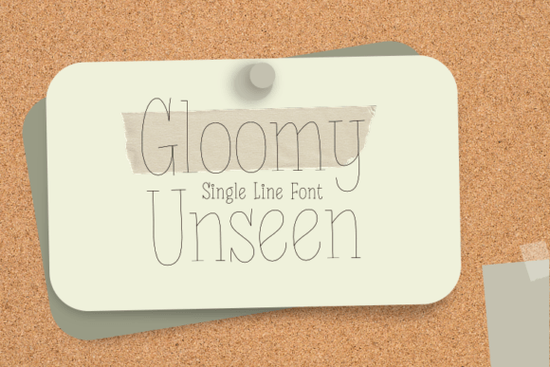
If you've been looking for a casual, handwritten-style font that's built for Cricut's Pen function, Gloomy Unseen is worth checking out. It's a single-line font with a neat, relaxed feel that works well for greeting cards, gift tags, invitations, and other crafting projects where you want text that looks hand-drawn without the effort.
Let's look at what makes this font different, who it's best for, and how to get the most out of it.
What Does "Single-Line Font" Actually Mean?
Single-line fonts sometimes called stroke or engraving fonts draw each character with one continuous line instead of tracing an outline. When you use a regular font with a Cricut pen, the machine often draws the outline of each letter, leaving you with hollow, bubble-shaped text.
A single-line font skips that problem. The pen follows a single path, giving you clean, thin lines that look like they were drawn by hand. This makes a big difference on projects where the writing is the main focus.
Who Is Gloomy Unseen Best For?
This font works well for a range of people and projects:
- Crafters and hobbyists who make cards, planners, or scrapbook layouts
- Print-on-demand sellers who need a casual handwritten look for their designs
- Small business owners creating thank-you notes, product labels, or branded packaging
- Teachers making classroom materials with a personal, approachable feel
Its tone is casual without being sloppy, which makes it flexible enough for birthdays, holidays, and everyday notes alike.
What Can You Make With It?
Since it's designed for Cricut's pen output, the best projects are ones where drawn text stands out:
- Greeting cards and invitations
- Wedding place cards and menus
- Gift tags and favor labels
- Planner headers and stickers
- Envelope addressing
- Scrapbook titles and journaling
It looks especially good on kraft paper, colored cardstock, and textured materials where a heavy or bold font might feel too strong.
How Do You Set It Up in Cricut Design Space?
After downloading and installing the font on your computer, open Cricut Design Space and find it in your font list. A few tips to get clean results:
- Set the text to "Draw" mode in the Layers panel this tells the machine to use a pen instead of the blade.
- Choose the right pen. Fine-point Cricut pens give the cleanest look with single-line fonts. Medium-point pens work if you want slightly thicker strokes.
- Test on scrap material first. Run a quick draw on the same material you plan to use for your final project.
- Adjust letter spacing using the spacing tool in Design Space if the characters feel too tight or too far apart.
What Other Fonts Pair Well With It?
One font alone doesn't always complete a design. If you want to mix styles or need alternatives, here are a few options worth exploring.
For a flowing, relaxed script, Sunday has a gentle, connected style that works nicely for casual and elegant projects. If you prefer something with more energy, Splashed brings a bold, expressive feel great for eye-catching script designs.
Looking for a brush-style option? Sign Rathi has strong, confident strokes that stand out on signs and headers. For projects that need multiple font styles, Lovely Mood Duo pairs a script with a clean serif useful when you want matched font combinations without hunting for compatible typefaces. And if you're going for a whimsical, hand-lettered look, Partly Notes offers playful lettering that fits right into craft projects.
Is It Worth Adding to Your Font Collection?
If you use your Cricut's pen function regularly, having a reliable single-line font like Gloomy Unseen in your toolkit just makes sense. It draws clean, doesn't require any special setup beyond installation, and works across a wide range of projects. It won't replace every font you own, but for casual, handwritten text that actually looks handwritten, it does the job well.
Before You Start Quick Checklist
- Download and install the font on your computer
- Restart Cricut Design Space so it recognizes the new font
- Select "Draw" as the line type for your text
- Pick a Cricut pen that matches the stroke weight you want
- Test on scrap material before your final run
- Adjust letter spacing if needed for your layout
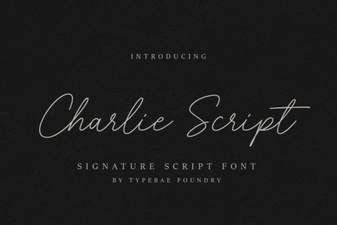 Elevate Projects with Charlie Script
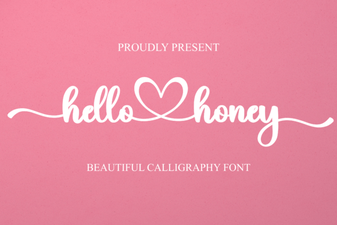 Hello Honey Font: Sweet Handwritten Style for Creative Projects
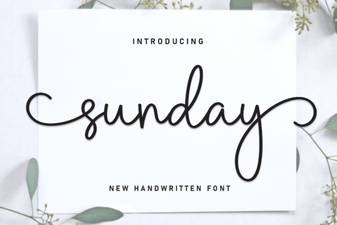 Sunday Font – Free Script Font Download for Elegant Designs
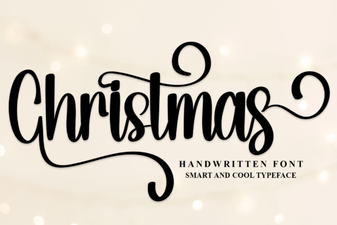 Christmas Script Font Collection for Holiday Designs
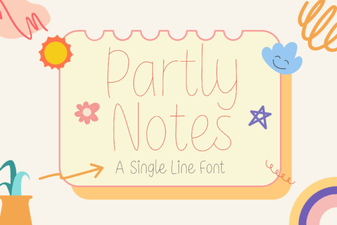 Creative Design with Partly Notes Font
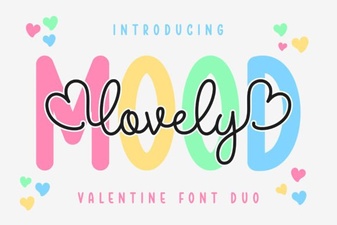 Lovely Mood Duo Font: Creative Design Pairing for Projects